

Streaming in 2025 is no longer just for professional gamers—it’s for anyone who wants to share their gameplay, connect with an audience, and even earn money online. The Xbox Series X and Series S have powerful built-in tools for live streaming, making it easier than ever to go live on Twitch, YouTube, and Facebook Gaming.
In this GreatOverlays step-by-step guide, we will cover everything you’ll need: from streaming without a capture card to pro setups with overlays, alerts, and branding that make your channel shine.
Why Stream on Xbox Series X/S?
The new generation of Xbox consoles has creators in mind. Here’s why it’s a great choice for beginners and advanced streamers:
- Built-in streaming apps: Twitch and Lightstream integration allow you to go live directly.
- 4K 60 FPS gameplay is supported by Xbox Series X, and Series S supports 1080p and 1440p with ease.
- Easy-to-use setup: No capture card or PC required to get started.
- Room to grow: As your channel grows, you can upgrade with capture cards, OBS Studio, and GreatOverlays branding packages.
Step 1: Setting Up Your Xbox for Streaming
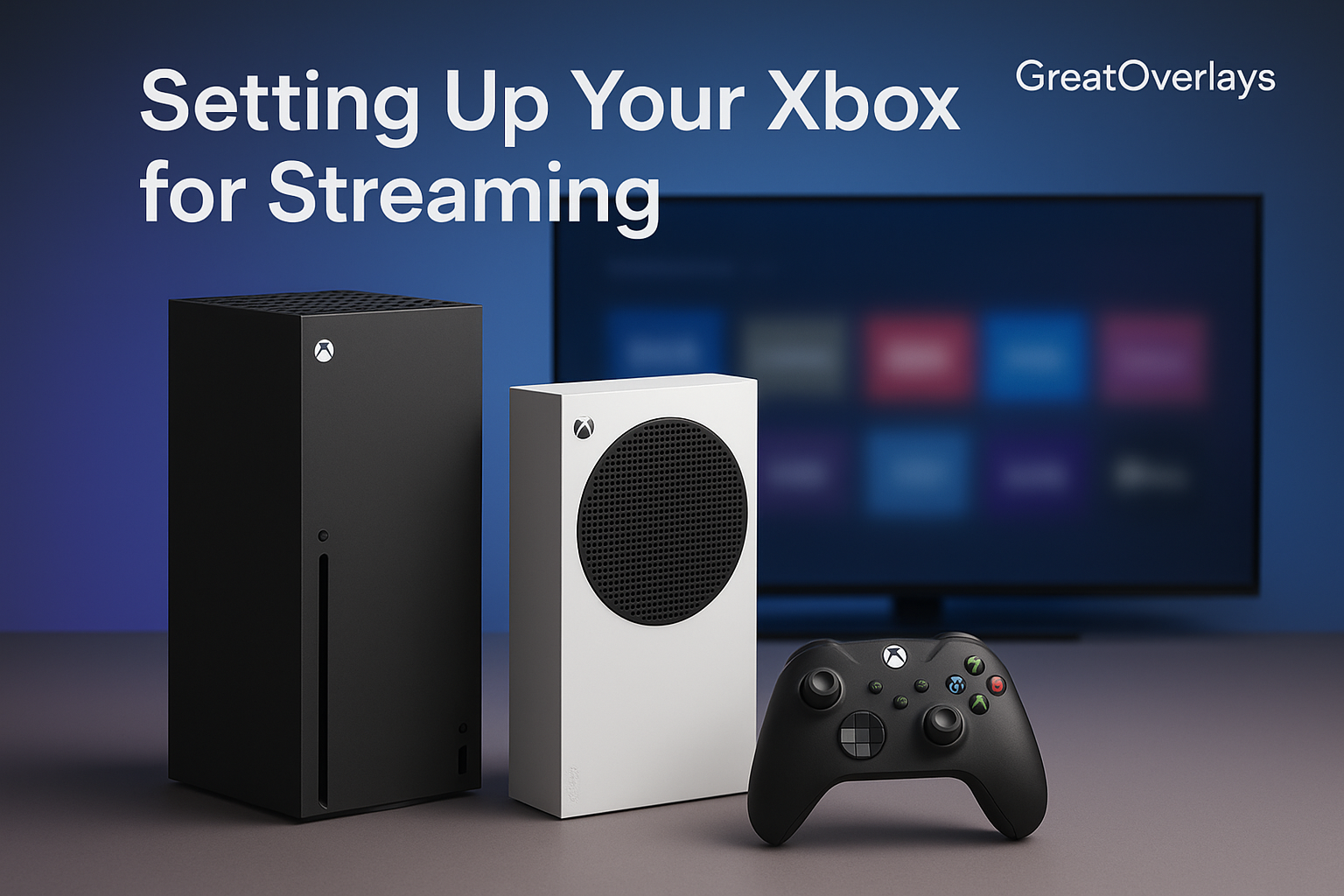
Before going live, ensure everything is ready:
- Update your console – Install the latest firmware to prevent glitches.
- Download streaming apps – Use the Twitch app or Lightstream Studio.
- Check your internet – At least 10 Mbps upload for 1080p, 20 Mbps+ for 4K.
- Configure audio – Use a gaming headset or USB mic for clear commentary.
- Adjust privacy settings – Ensure broadcasting permissions are enabled.
Step 2: Capturing Without a Capture Card (Beginner Setup)
If you don’t want to invest in hardware yet, you can still go live directly from Xbox:
- Twitch App – Log in, set up your stream title, camera, and mic, then press Go Live.
- Lightstream Studio – Cloud-based customization that lets you add overlays and alerts. GreatOverlays packages can be directly integrated here for a professional look.
- Restream.io – Allows streaming to YouTube and Facebook even though Xbox doesn’t natively support them.
Step 3: Streaming With a Capture Card (Professional Setup)
For advanced streamers who want full control and pro branding, a capture card setup is ideal.
Recommended Hardware
- Elgato HD60 X – Best for 1080p/1440p streaming.
- Elgato 4K60 Pro – Best for high-end 4K streaming.
- Streaming PC – At least i5/Ryzen 5 CPU, 16GB RAM, and a dedicated GPU.
Setup Process
- Connect Xbox → Capture Card → Streaming PC.
- Install OBS Studio or Streamlabs OBS.
- Import GreatOverlays packages (overlays, alerts, webcam frames, talking banners).
- Create scenes (Starting Soon, Live, Intermission, Ending).
- Test audio, video, and bitrate before going live.
This setup provides a professional Twitch or YouTube broadcasting experience.
Step 4: Personalizing Your Xbox Streams with GreatOverlays
A stream without branding looks plain. GreatOverlays helps you stand out with:
- Overlays – Webcam frames, gameplay borders, and animated banners.
- Alerts – Notifications for new followers, subs, and donations.
- Labels – Display recent subscriber, top donor, etc.
- Chat Box – Let your viewers interact live on screen.
- Talking Screens – For commentary, breaks, and audience engagement.
All these features are included in GreatOverlays premium packages tailored for Xbox streamers.
Step 5: Xbox Series X/S Streaming Tips
- Use wired internet (Ethernet) for a stable stream.
- Set bitrate between 4500–6000 kbps for smooth 1080p.
- Stream on a consistent schedule to build an audience.
- Start simple, then gradually add animated overlays, transitions, and pro branding.
- Always engage with your viewers by reading and responding to chat.
Step 6: Monetization & Growth in 2025
Streaming on Xbox can also be profitable. Here’s how streamers monetize:
- Twitch Affiliate & Partner – Earn through subs, Bits, and ads.
- Donations & Tips – Accept contributions via PayPal or third-party apps.
- Sponsorships & Brand Deals – Attract partnerships as your channel grows.
- Merchandise – Sell branded gear to your fanbase.
With GreatOverlays branding, your channel looks professional from day one—giving you an edge in attracting sponsors and building your brand.
FAQ – Xbox Series X/S Streaming 2025 (GreatOverlays)
Q1: Can I stream on Xbox without a PC or capture card?
Yes, you can stream directly using the Twitch app or Lightstream Studio.
Q2: What’s the best capture card for Xbox Series X in 2025?
The Elgato HD60 X for 1080p/1440p, and Elgato 4K60 Pro for 4K streaming.
Q3: Can I add overlays directly from Xbox?
Not natively. You’ll need Lightstream Studio or a capture card with OBS.
Q4: Can I stream directly to YouTube or Facebook?
No. Xbox supports Twitch natively, but you can use Restream.io or a capture card setup.
Q5: Are GreatOverlays products Xbox-compatible?
Absolutely. GreatOverlays overlays, alerts, and widgets work seamlessly with Lightstream or OBS setups.