

PS4 streaming has never been simpler with the PS4 Twitch app, capture cards, and streaming software like Lightstream Studio. Whether you play competitive esports or relaxing games, professional streaming involves a good setup, overlays, and even troubleshooting skills.
This comprehensive PS4 Twitch streaming tutorial by Great Overlays will show you how to:
- Set up Twitch on PS4 and begin streaming
- Use capture cards for high-quality streams
- Add overlays and alerts using GreatOverlays
- Adjust facecam and microphone settings
- Solve general PS4 Twitch streaming problems
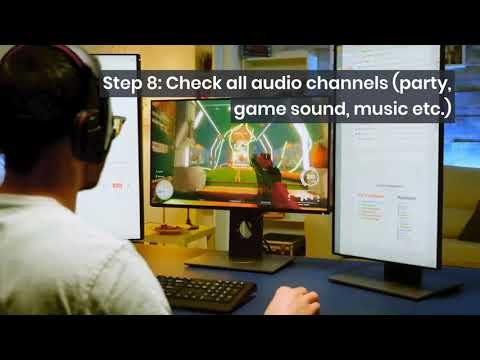
Step 1: Preparing Your PS4 to Stream Twitch
Before streaming, ensure your PS4 account is ready:
- Sign In → Twitch App on PS4
- Link your Twitch Account with your PSN ID
- Set Stream Title & Game from the broadcast menu
- Adjust Privacy Settings to enable viewers to view your stream
💡 Great Overlays’ Pro Tip: Test your stream key and account link to broadcast smoothly.
Step 2: Utilizing Capture Cards for High-Quality PS4 Streams

The PS4 Twitch app allows direct streaming, but using a capture card improves quality and control:
- Recommended Capture Cards: Elgato HD60X or equivalent
- Setup: PS4 → Capture Card → PC
- Launch OBS Studio or Lightstream Studio for stream control
- Copy your Twitch Stream Key to OBS or streaming software
💡 Awesome Overlays Tip: A capture card allows support of professional overlays and alerts by GreatOverlays.
Step 3: Adding Overlays and Facecam from GreatOverlays
Professional streams excel with overlays and alerts. GreatOverlays offers:
- Overlay Packs: Animated webcam frames, banners, and transitions
- Alerts: New follower, subscriber, and donation notifications
- Facecam Setup: Place and resize without obscuring gameplay
- Scene Layouts: Intermission, start screen, and end screen
How to Add Overlays:
- Launch OBS or Lightstream Studio → Add Browser Source
- Copy and paste your GreatOverlays URL
- Adjust position and size to fit your PS4 stream layout
💡 Great Overlays Tip: Great-looking overlays enhance your PS4 streams, making them professional and engaging, with high viewership retention.
Step 4: Microphone and Audio Settings Configuration
Clear audio is crucial for engaging streams:
- Use a USB or XLR mic supported by PS4 or capture card setup
- Configure OBS or Lightstream audio levels: 160 kbps recommended for crisp voice
- Activate audio monitoring for game and microphone balance
💡 Pro Tip by Great Overlays: Professional overlays paired with good audio significantly improve your stream’s perceived quality.
Step 5: Stream Live on PS4 Twitch
Once your setup is ready:
- Open the Twitch app → Click Broadcast Gameplay
- If using a capture card → Begin streaming through OBS or Lightstream Studio
- Monitor chat activity via Twitch Dashboard
Recommended Tips:
- Stream with wired Ethernet rather than Wi-Fi for reliability
- Pre-test overlays, facecam, and audio before going live
- Stream at scheduled times for regular audience interaction
Step 6: Troubleshooting PS4 Twitch Streams
Even seasoned streamers encounter issues. Common solutions include:
- Lagging Stream: Lower OBS output resolution or bitrate
- Audio Problems: Check microphone preferences and OBS audio mixer
- Overlays Not Appearing: Verify Browser Source URLs and scene sequence in OBS
- Remote Play Streaming Issues: Ensure PS4 and PC are on the same network with proper bandwidth
💡 Fantastic Overlays Tip: GreatOverlays tutorials and troubleshooting documents help ensure seamless, high-quality PS4 streams.
FAQs – PS4 Twitch Stream Tutorial by Great Overlays
Q1: Do I need a capture card to stream?
Yes, the Twitch app supports direct streaming, but capture cards allow overlays and improved quality.
Q2: Which overlay packs are ideal for PS4?
Use GreatOverlays PS4 Twitch overlays specifically created for console streams.
Q3: How do I implement facecam on PS4 streams?
Use capture card compatibility with OBS or Lightstream Studio to set up your webcam with GreatOverlays overlay packs.
Q4: How do I eliminate lag on PS4 Twitch streams?
Use wired Ethernet, lower output resolution, and verify your PC/OBS settings.
Q5: Is it possible to monetize PS4 streams on Twitch?
Yes, enable Twitch Affiliate or Partner programs for subscriptions, bits, and donations.