

Alright, let’s cut through the techy nonsense—getting your Nintendo Switch onto Twitch or YouTube is honestly not that scary, even though it looks like a spaghetti mess of cables at first glance.
The Switch isn’t just a Mario Kart launcher—it’s the hip hangout for Zelda speedrunners, Smash bros tourneys, or just soaking it all in with your chat. People think streaming from a Switch is advanced engineering, but I swear, if you can hook up a Netflix account, you can handle this.
What You Actually Need
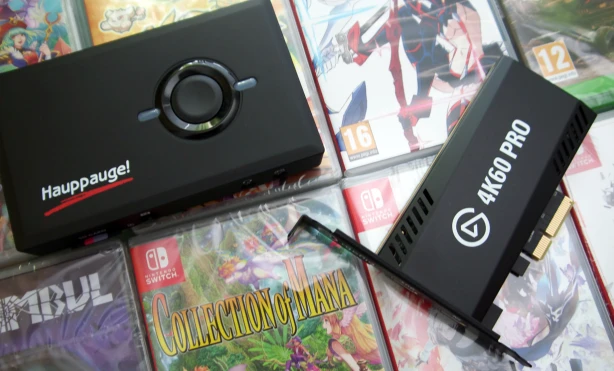
First off, hardware-wise, don’t overthink it. Grab your Switch (obviously), then a capture card—something like the Elgato HD60 S or any solid knockoff from Amazon. That’s your “magic box” that lets your PC see what’s happening on your Switch.
The PC or laptop doing the heavy lifting can be pretty modest if you’re not adding a ton of dude-perfect overlays.
- Microphone? Gotta have one, unless you want people to vibe out to silence (which is just awkward).
- Webcam? That’s up to you.
- Animated overlays (GreatOverlays, for example)? Not required, but if you want to look like a pro who, like, actually puts effort into branding… well.
Software’s even less complicated:
- Download OBS Studio (that’s what everyone uses—unless you’re streaming from your grandma’s flip phone).
- Get yourself a Twitch or YouTube account.
- If you’re extra, look up Restream to spam your gameplay all over the place at once.
How To Actually Set It Up Without Losing Your Mind
Step 1: Connect That Capture Card
This part? It’s cable wrangling.
- HDMI from Switch dock → into capture card.
- Another HDMI comes out of the capture card and goes into your TV or monitor.
- Then the capture card plugs into your PC via USB.
Don’t overthink it, just match up the ports until stuff lights up.
Step 2: Fire Up OBS Studio
Pretty easy.
- Install, open OBS.
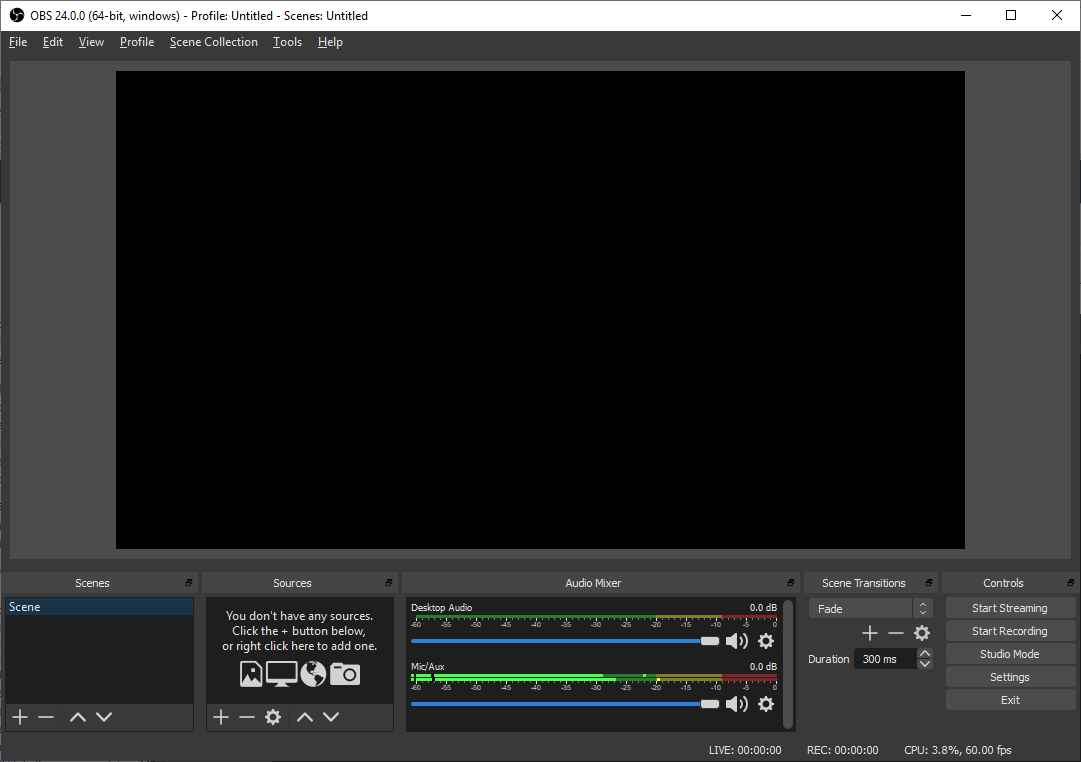
- Add a new “Video Capture Device” source, pick your capture card, and—boom, you’ll see your game.
- Toss in your mic, webcam, and any overlays you want (if you care about style points).
Step 3: Get OBS Dialed for Streaming
- Hop into the settings, find “Stream”, and pick your platform.
- Copy that Stream Key from your Twitch/YouTube dashboard—don’t leak it, or you’ll regret it.
- Go 1080p if your rig allows it, or 720p if your internet’s being stubborn.
- Keep that bitrate 4500–6000 kbps—don’t get greedy or your stream turns into a slideshow.
Step 4: Spice It Up With Overlays & Alerts
Now for the sizzle.
With overlays and stuff from GreatOverlays, you’ll look like you kinda know what you’re doing.
- Animated alerts
- Webcam borders
- Donation popups
It makes everything feel official. In OBS, add a Browser Source, slap in the overlay URL from whatever service you’re using, and move stuff around till it looks good. Done.
Step 5: Hit Go Live and Don’t Panic
Quick pre-flight checklist:
✅ Check your audio (nobody likes busted mic static).
✅ Make sure your internet isn’t running on hamster wheels (5 Mbps up, at least).
✅ Smash that Start Streaming button in OBS.
You’re officially out there.
Hot Tips So You Don’t Look Like a Total Noob
- Your mic quality actually matters more than HD graphics—nobody wants to hear you sound like you’re trapped in a tin can.
- If your webcam makes you look like you’re broadcasting from a crypt, add a lamp.
- Wired internet if possible. WiFi drops out and you’ll be stuck explaining robot-voice lag.
- Read chat, banter with viewers—people wanna hang out, not just watch you lose at Mario Kart.
Burning Questions – Answered
Q: Can I stream without a capture card?
A: Eh, technically, but it’s real janky. Xbox Twitch app or weird workarounds. If you want the real deal, just get the capture card.
Q: Best capture card?
A: Elgato HD60 S+ if money isn’t tight, or find a decent cheaper one and check reviews (avoid anything with “surprise” in the brand name).
Q: Overlays—do I need them?
A: Need? Nah. But they make stream look pro, keep viewers engaged, and hey, who doesn’t want animated alerts?
Q: Why can’t I just stream direct from the Switch?
A: Nintendo apparently hates convenience. No built-in streaming like PlayStation or Xbox. That’s why capture card + OBS is the move.