

YouTube is still one of the biggest live streaming platforms, giving content creators an opportunity to connect with millions while earning money from their content. Thanks to YouTube Studio and software such as OBS Studio, amateurs can create professional-looking streams.
If you are gaming, having a talk show, or streaming artistic content, this complete YouTube streaming guide by Great Overlays will teach you how to:
- Configure your YouTube channel for live streaming
- Set up OBS Studio for high-definition broadcasts
- Stream from desktop, laptop, or mobile
- Make money with Super Chat, Super Stickers, and the YouTube Partner Program
- Add professional overlays and branding from Great Overlays
Step 1: Setting Up Your YouTube Channel for Live Streaming
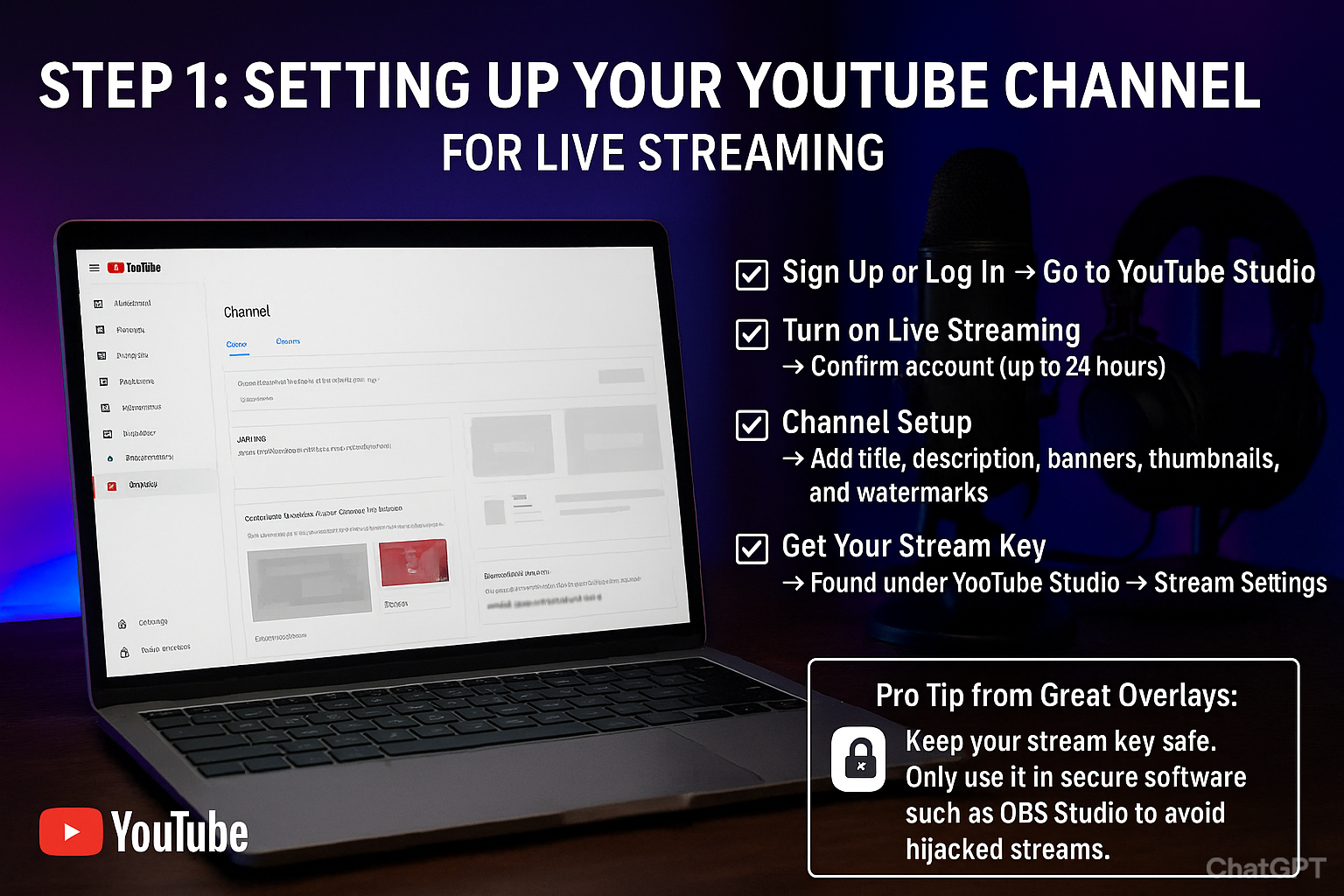
Go live with a well-configured channel beforehand:
- Sign Up or Log In → Go to YouTube Studio
- Turn on Live Streaming → Confirm account (up to 24 hours)
- Channel Setup → Add title, description, banners, thumbnails, and watermarks
- Get Your Stream Key → Found under YouTube Studio → Stream Settings
Pro Tip from Great Overlays: Keep your stream key safe. Only use it in secure software such as OBS Studio to avoid hijacked streams.
Step 2: Installing and Setting Up OBS Studio for YouTube
OBS Studio is the most widely used streaming software on YouTube:
- Download & Install OBS Studio from obsproject.com
- Open OBS → Go to Settings → Stream Tab
- Service: Select YouTube / YouTube Gaming
- Server: Default YouTube ingest server
- Stream Key: Paste your YouTube key here
- Click Apply & OK → You’re connected to YouTube Studio
Great Overlays Tip: Customize your stream with Great Overlays custom overlays for YouTube streams to make it visually professional.
Step 3: Best OBS Studio Settings for YouTube Streaming
Video Settings
- Base Resolution: 1920×1080 (Full HD) or 1280×720 for mid-range PCs
- FPS: 60 for gaming/esports, 30 for casual streams
Encoder Settings
- Encoder: NVENC (NVIDIA GPU) or x264
- Bitrate: 4500–6000 kbps for 1080p, 2500–4000 kbps for 720p
- Keyframe Interval: 2 seconds
Audio Settings
- Sample Rate: 48 kHz
- Bitrate: 160 kbps for clear voice and game audio
Great Overlays Tip: Include your webcam, microphone, and chroma key/greenscreen for a pro look.
Step 4: Adding Professional Overlays & Alerts (Great Overlays)
Professional streams are highlighted with overlays, alerts, and stream layouts:
- Overlay Packs: Animated webcam frames, banners, and transitions
- Alerts: Super Chat, Super Stickers, donations, and subscriber notifications
- Scene Layouts: Start screen, intermission, and end screen designs
How to Add Great Overlays to OBS for YouTube:
- Open OBS → Click Add → Browser Source
- Paste the URL from your Great Overlays package
- Adjust position, size, and layer order for best layout
Great Overlays Pro Tip: Engaging overlays maximize subscribers & members while maintaining your channel brand consistency.
Step 5: Mobile YouTube Streaming Setup
Mobile streaming is also supported on YouTube:
- Download YouTube App → Go Live
- Check Channel (at least 1,000 subscribers needed for mobile)
- Activate Super Chat / Stickers for revenue generation
- Utilize mobile-friendly overlays and graphics from Great Overlays
Great Overlays Tip: Professional overlays and branded alerts even on mobile increase viewer engagement.
Step 6: Going Live & Monitoring Your Stream
- Launch OBS or mobile app → Click Go Live
- Watch your stream in YouTube Studio Analytics
- Interact with live chat, emojis, badges, and viewer questions
Recommended Tips for a Smooth Stream:
- Utilize wired internet for high-quality streams
- Check audio, webcam, and overlays beforehand
- Schedule your streams to create audience consistency
Step 7: Monetization Tips & Growth Strategies
YouTube offers various ways to monetize:
- Super Chat & Super Stickers: Reward engaged viewers
- YouTube Partner Program: Monetize ads and memberships
- Channel Branding Tips: Employ thumbnails, banners, and watermarks consistently
- Stream Scheduling: Stream regularly to improve audience retention
- Leverage Great Overlays Tutorials: Good overlays attract viewers and sponsors
Great Overlays Tip: Blending monetization with professional branding makes your streams appear credible and provides more growth opportunities.
FAQs – YouTube Streaming Guide by Great Overlays
Q1: Is it possible to stream games from YouTube without OBS?
A: Yes, YouTube mobile or native console streaming is possible, but more professional overlays and layouts are achievable with OBS.
Q2: Do I require a capture card for console streaming?
A: Yes, for optimal quality. Capture cards such as Elgato HD60X are perfect.
Q3: Is it possible to stream in 4K on YouTube?
A: Yes, provided you have a powerful PC, GPU, and upload speed of over 20 Mbps.
Q4: Which overlays should I use for YouTube streams?
A: Always use Great Overlays custom overlays for business and branded streams.
Q5: How do I remove lag on YouTube streams?
A: Decrease OBS output resolution, decrease bitrate, and always use wired internet.