

Presentation is just as crucial as content when it comes to live streaming. Adding animated label overlays to your stream not only makes your stream look more professional, but it also enables you to recognize your viewers in real time.
Having labels like “Last Follower”, “Recent Subscriber”, or “Top Donor” brings a sense of belonging that keeps the audience coming back.
In this guide to GreatOverlays, we’ll walk you through the process of adding animated label overlays to OBS Studio in a step-by-step manner. Whether streaming on Twitch, YouTube, or Kick, refer to this guide to add overlays seamlessly to your setup.
Why Do We Need Animated Label Overlays?
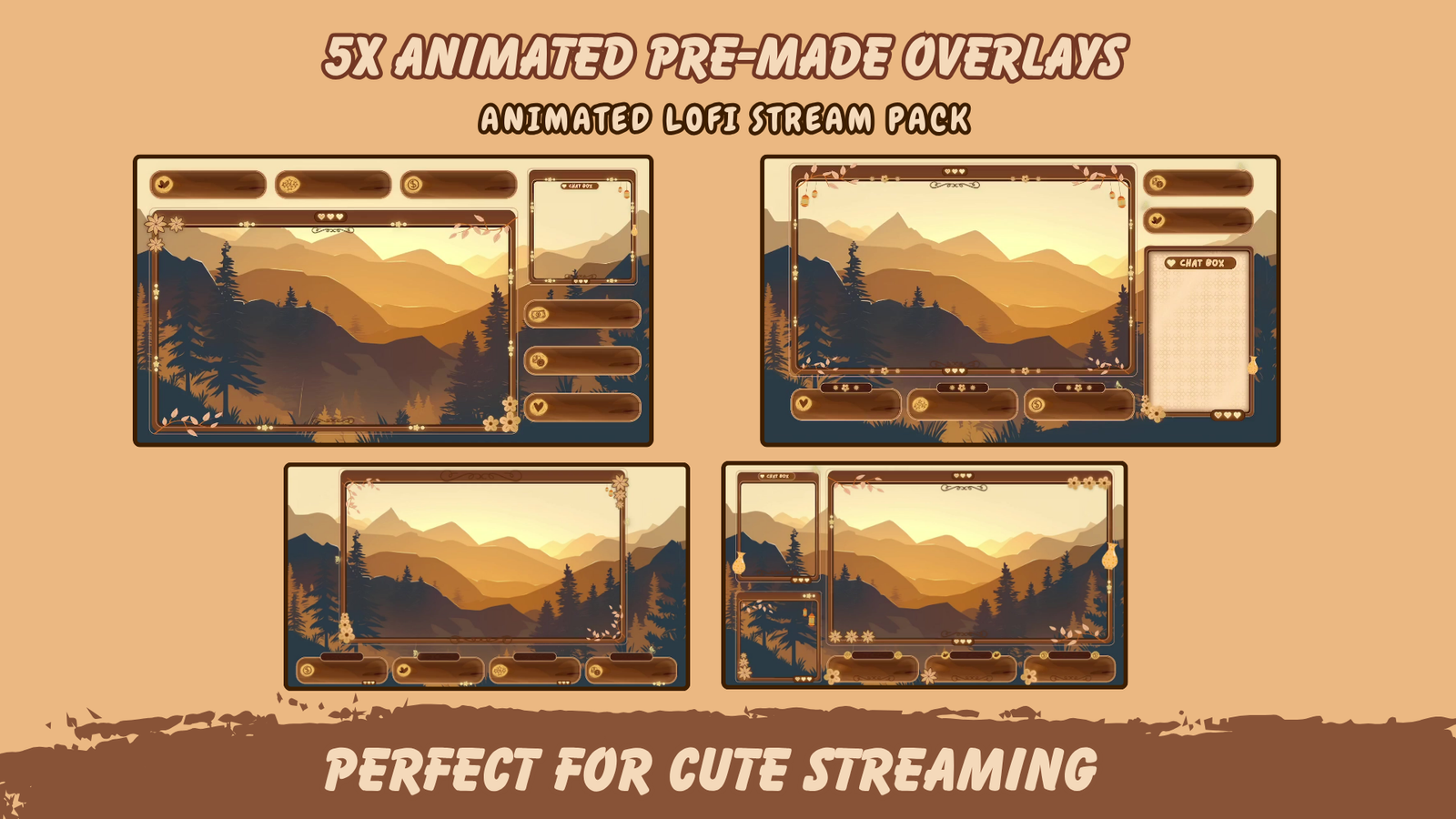
Here’s why streamers need animated labels:
- Viewer Recognition – Highlight your supporters live on stream.
- Professional Branding – GreatOverlays animated label designs make your channel look professional from the moment you use them.
- Encourages Engagement – Subscribers, donations, and follows are more likely to happen if viewers see their names on screen.
- Easy Customization – GreatOverlays’ animated labels are plug-and-play and OBS Studio compatible.
Step 1: Download Your Label Overlay Package
Begin by downloading your animated label designs. At GreatOverlays, we provide:
- Professionally designed label overlays (sub, donation, follower).
- Optimized WEBM files for seamless playback in OBS Studio.
- Entire overlay packages (alerts, transitions, panels, labels) so your brand integrity is not compromised.
Default labels are provided for free using software like StreamElements or Streamlabs, but when it comes to superior animated overlays that match your brand, GreatOverlays is the way to go.
Step 2: Add a Browser Source in OBS Studio
OBS Studio doesn’t generate labels on its own. You’ll need to connect it with a tool (StreamElements, Streamlabs, or BotRix) that generates a browser source URL.
Here’s how:
- Open OBS Studio.
- Go to Sources → + → Browser Source.
- Name it (e.g., “GreatOverlays Labels”).
- Paste the URL for your label widget (from StreamElements/Streamlabs).
- Adjust the resolution (1920×1080 for full HD streams).
Step 3: Insert Animated Label Overlays from GreatOverlays
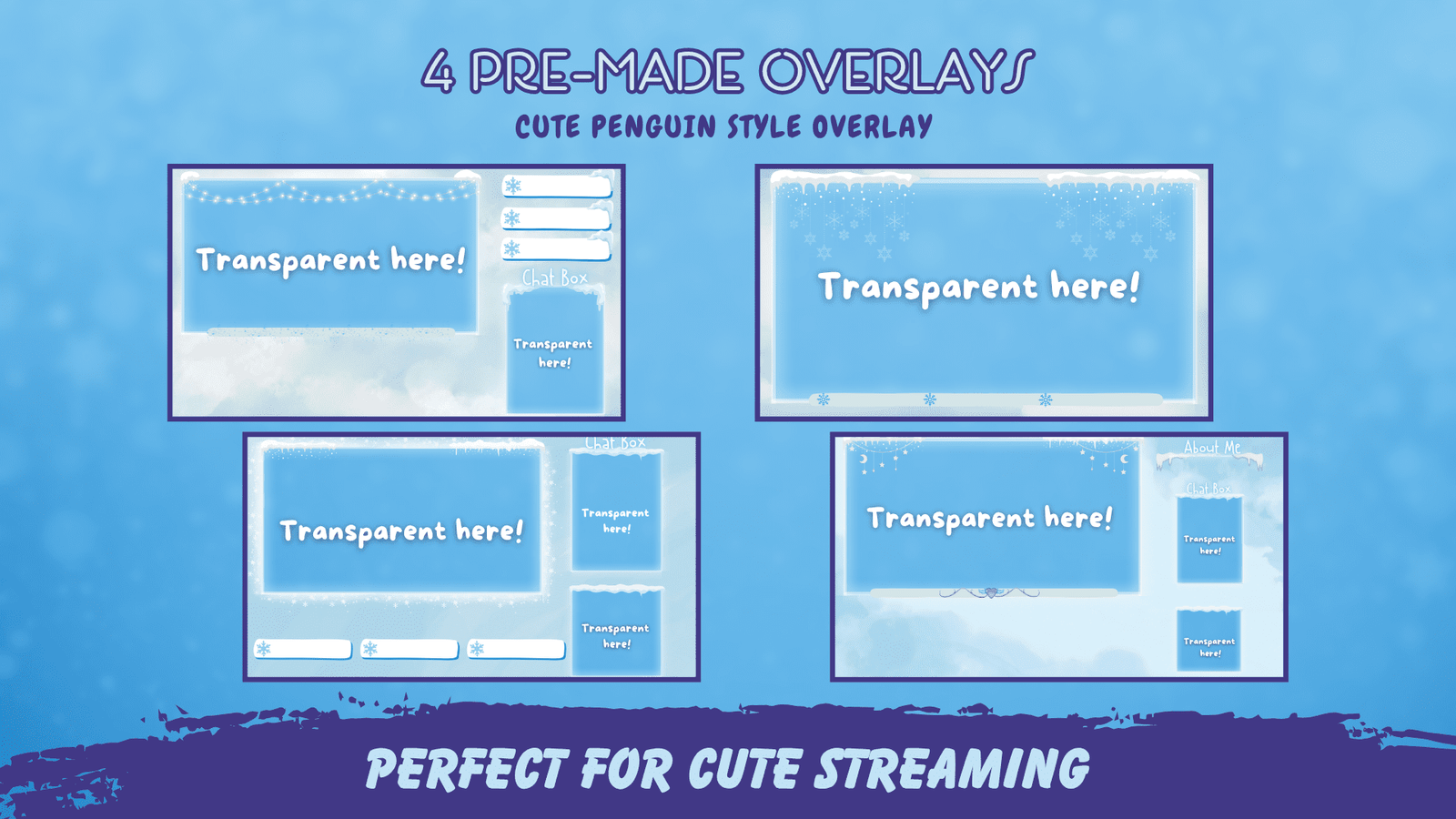
Once the label widget is installed, now add your animated design overlay:
- In OBS Studio, click + → Media Source.
- Select the GreatOverlays WEBM file (e.g., “Last Follower Overlay”).
- Place the animated frame wherever you like on your stream.
- Overlap the label text (browser source) on top of the overlay design.
✅ This combination creates a professional-looking, animated label presentation for your stream.
Step 4: Customize Your Labels
With GreatOverlays packages, you can:
- Add “Last Follower,” “Recent Subscriber,” and “Top Donor” with custom animations.
- Customize colors, fonts, and styles to match your branding.
- Place labels anywhere — at the bottom of your webcam, at the screen bottom, or in a side banner.
- Sync them up with your alerts and transitions for a cohesive look.
Step 5: Advanced Label Setup (Pro Streamers)
For a more advanced setup:
- Add animated webcam frames in addition to labels.
- Sync your alerts + labels with GreatOverlays bundles.
- Add goal widgets (donation trackers, sub goals).
- Switch live overlays using a Stream Deck.
All of these are easily integrated with GreatOverlays overlay packages.
Common Issues & Fixes
- ❌ Labels won’t update → Reconnect your widget URL in OBS.
- ❌ Overlay not visible → Make sure your animated design is layered underneath the label text.
- ❌ Labels too big/small → Resize the browser source in OBS.
- ❌ Laggy performance → Always use optimized WEBM overlays (like the ones provided by GreatOverlays).
FAQ
Q1: Do I need design skills to set up animated labels?
Not at all. GreatOverlays provides pre-made animated labels that you can simply place directly into OBS Studio.
Q2: Can I use GreatOverlays label overlays on both Twitch and YouTube?
Yes! Our overlays are compatible with Twitch, YouTube, and Kick.
Q3: Do I need premium tools to make labels work?
No. Using OBS Studio and a free program like StreamElements, you can add our overlays with ease.
Q4: How do I verify if my labels are working?
StreamElements and Streamlabs have a “Test Widget” button to view follower/sub updates.
Q5: Can I buy a package for all overlays instead of buying individual overlays?
Yes! GreatOverlays offers full streaming bundles — alerts, overlays, transitions, and labels — so your stream looks professional and consistent.