Stream Elements Widgets Tutorial

Lorem ipsum dolor sit amet, consectetur adipiscing elit. Ut elit tellus, luctus nec ullamcorper mattis, pulvinar dapibus leo.

Step One:

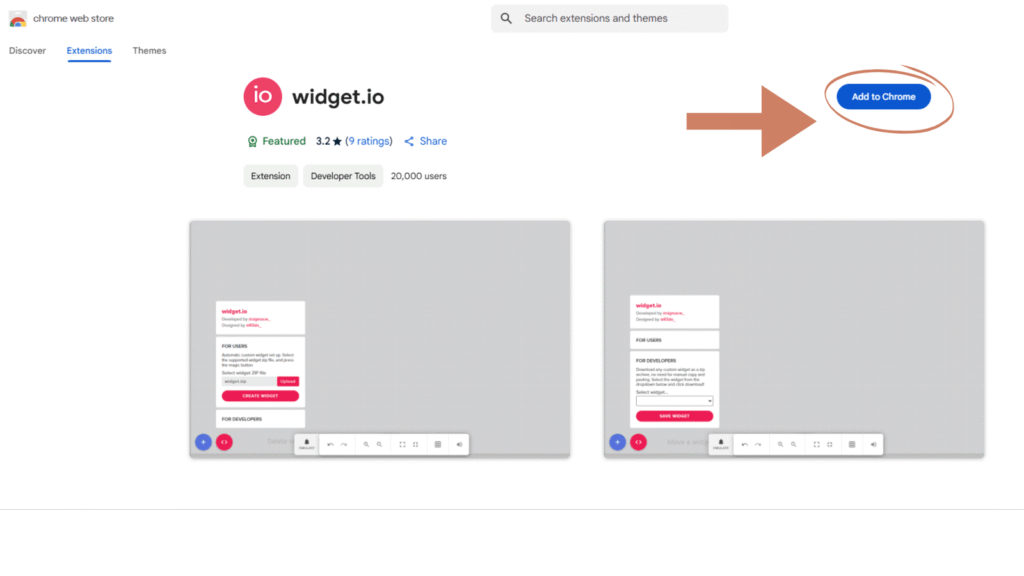
  1. Download the WIDGET.IO extension.

  2. Click here to download.

  3. Load your widget in one click.

Step Two:

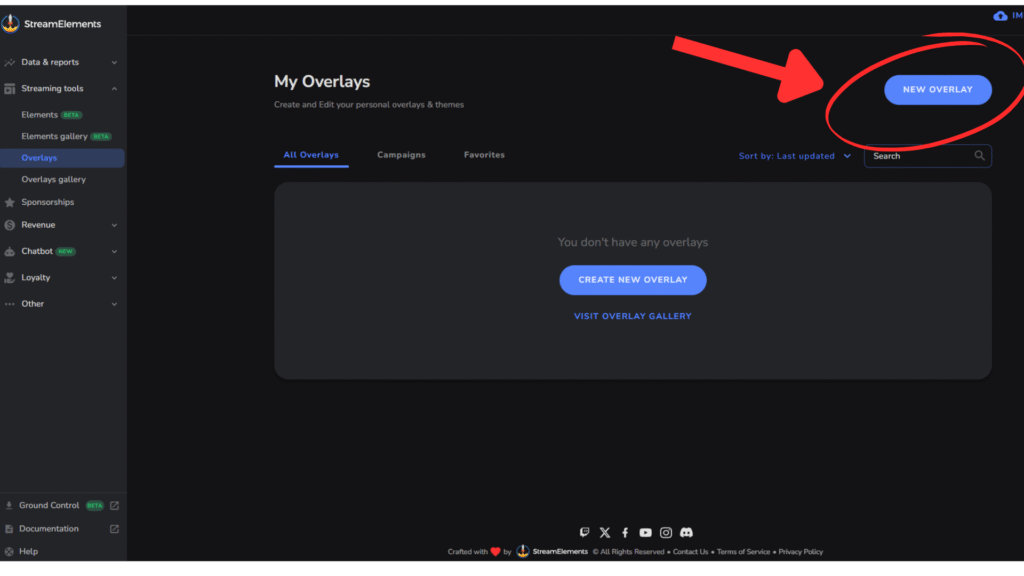
  1. Click on Create New Overlay or select an existing one to modify.

  2. Adding a Widget in StreamElements

Widget Tutorial

Step Three:

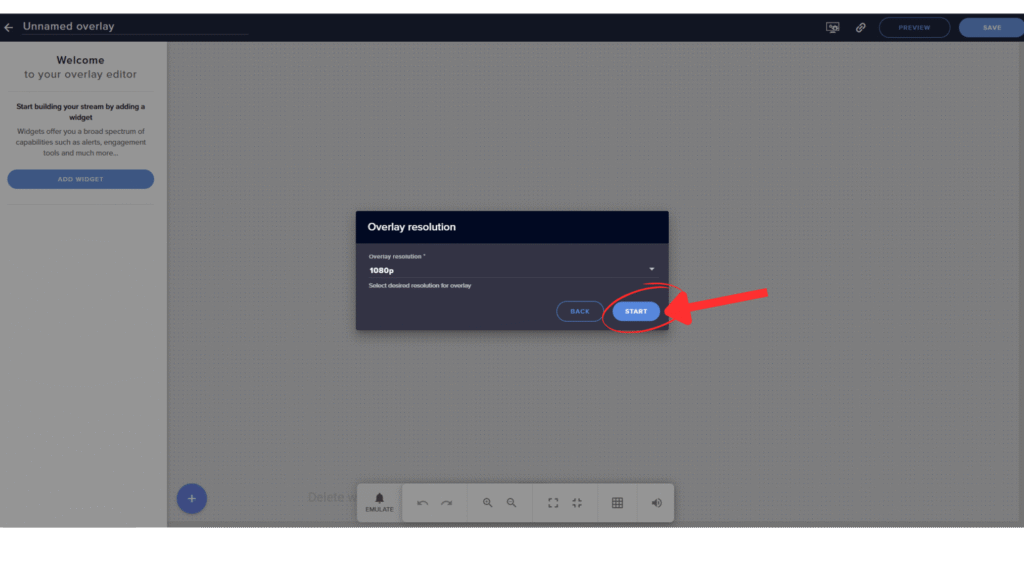
  1. Set the resolution (preferably 1080p), then click Start.

Step Four:

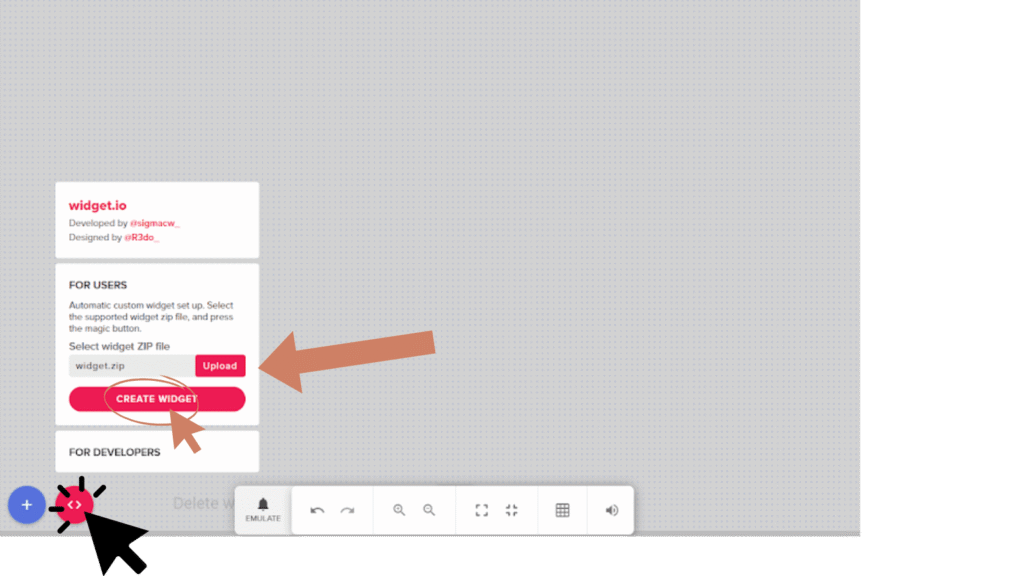
  1. Upload your Downloaded widget ZIP file and click ‘Create Widget’.

  2. If your widget is not displaying completely, expand the widget canvas by dragging it backward.

Step FIVE:

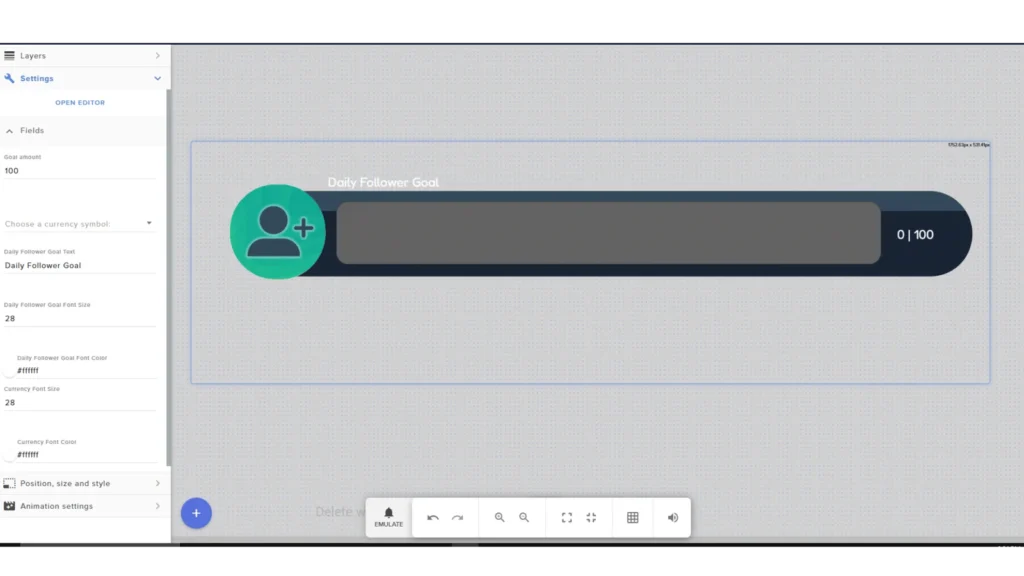
  1. Your widget has loaded successfully and is ready to go!

Step Six:

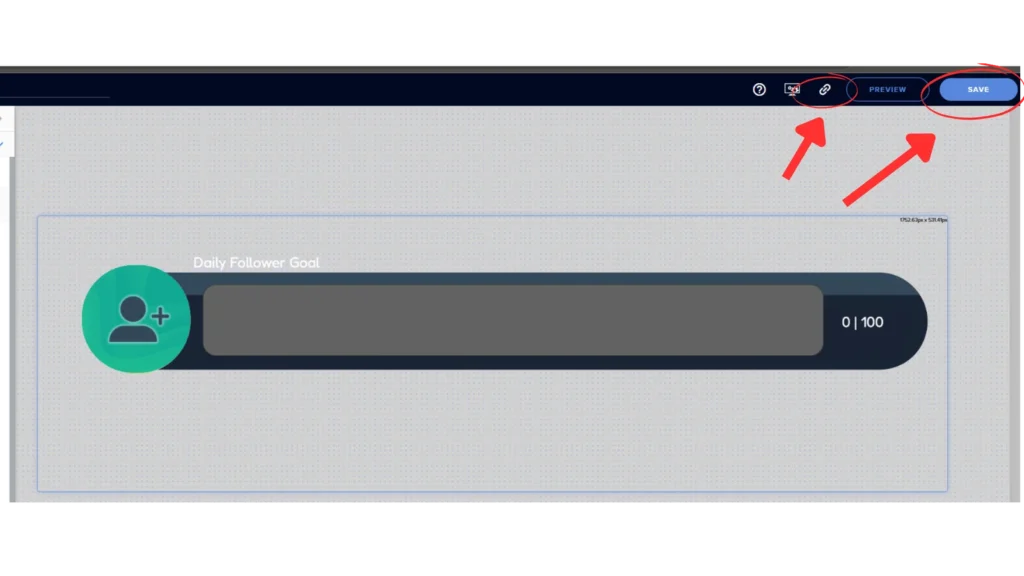
  1. After successfully loading, save it from the top right

  2. Give it any name you want.

  3. Then, copy the link.

  4. Open OBS and create a new scene or use an existing one.

Step Seven:

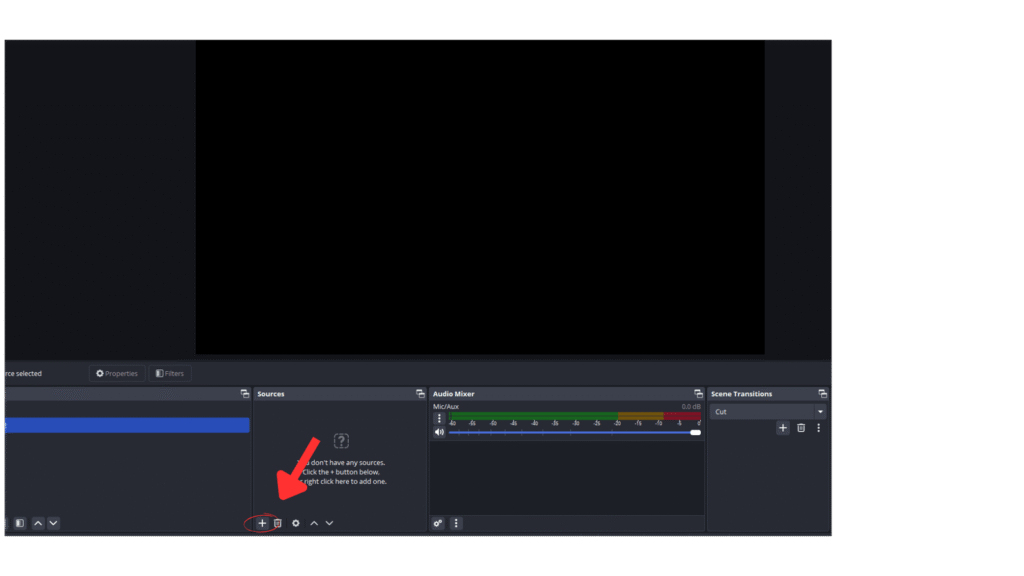
  1.  In OBS, go to the Sources section and click on the plus (+) icon.

Step Eight:

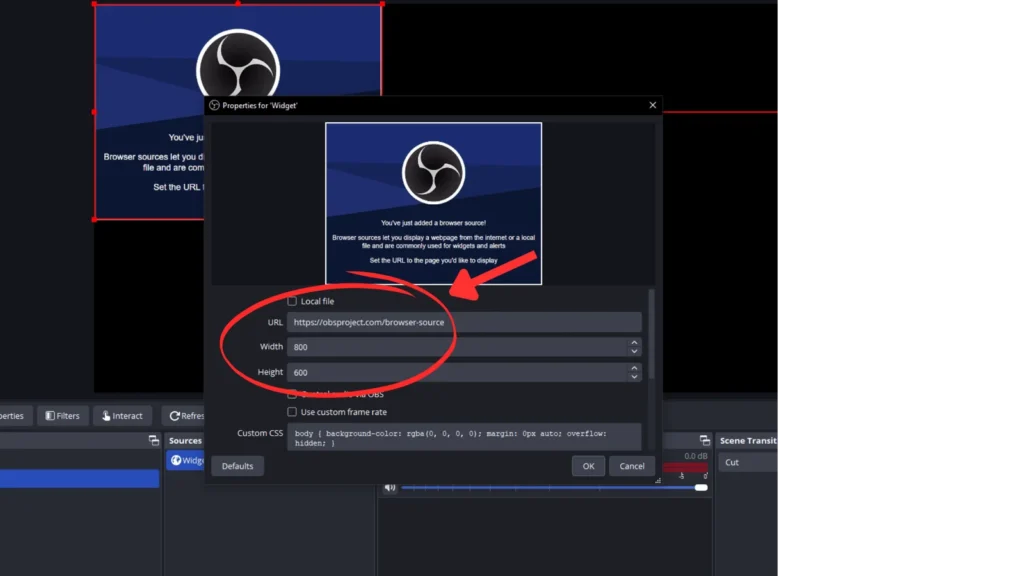
  1. After clicking the plus (+) icon, find ‘Browser’ and click on it.

  2. Give it any name you want.

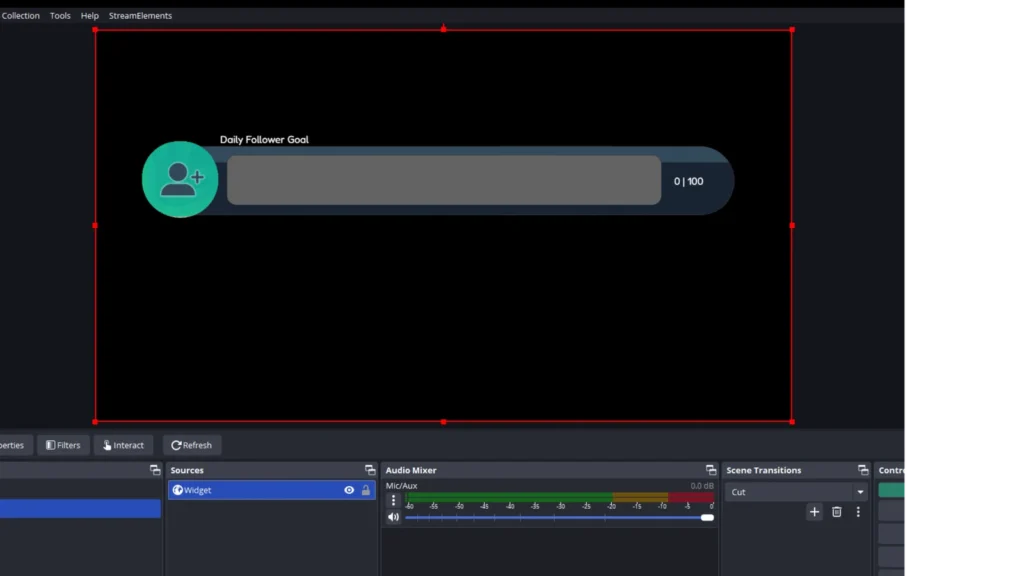
Step Nine:

  1. Now you’re ready to go live with your Twitch widgets. Happy streaming!!!!

Shopping Cart0

No products in the cart.