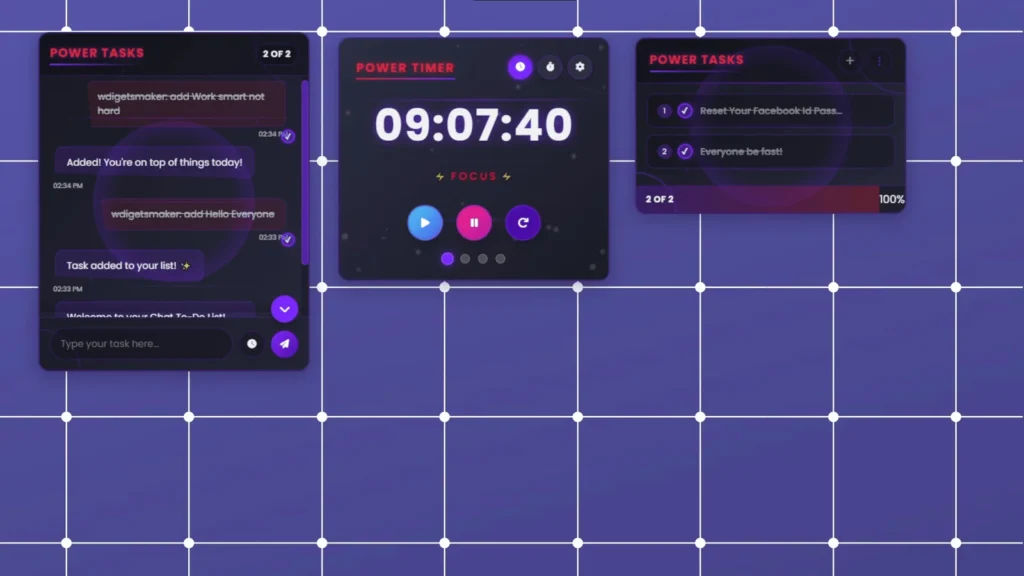
Stream Elements Widgets Tutorial

This guide walks through the process of loading widgets in StreamElements and OBS Studio, ensuring a smooth and professional-looking stream.

Step One:

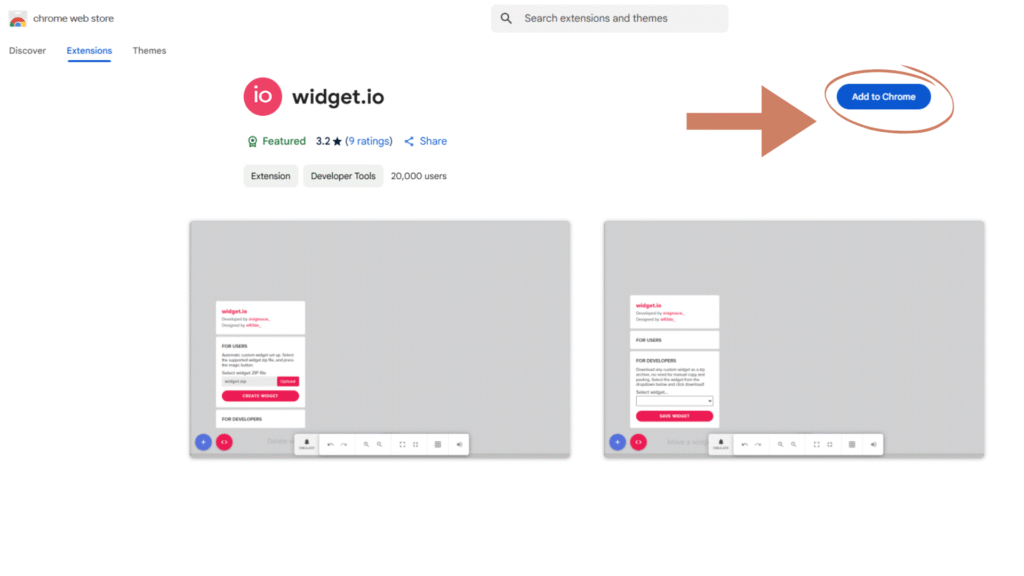
  1. Download the WIDGET.IO extension.

  2. Click here to download.

  3. Load your widget in one click.

Step Two:

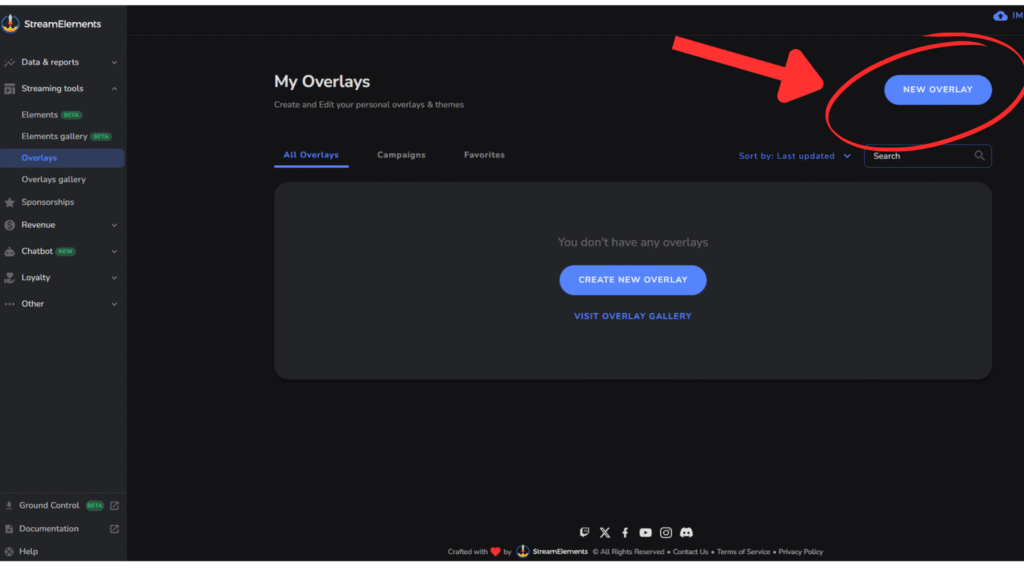
  1. Click on Create New Overlay or select an existing one to modify.

  2. Adding a Widget in StreamElements

Step Three:

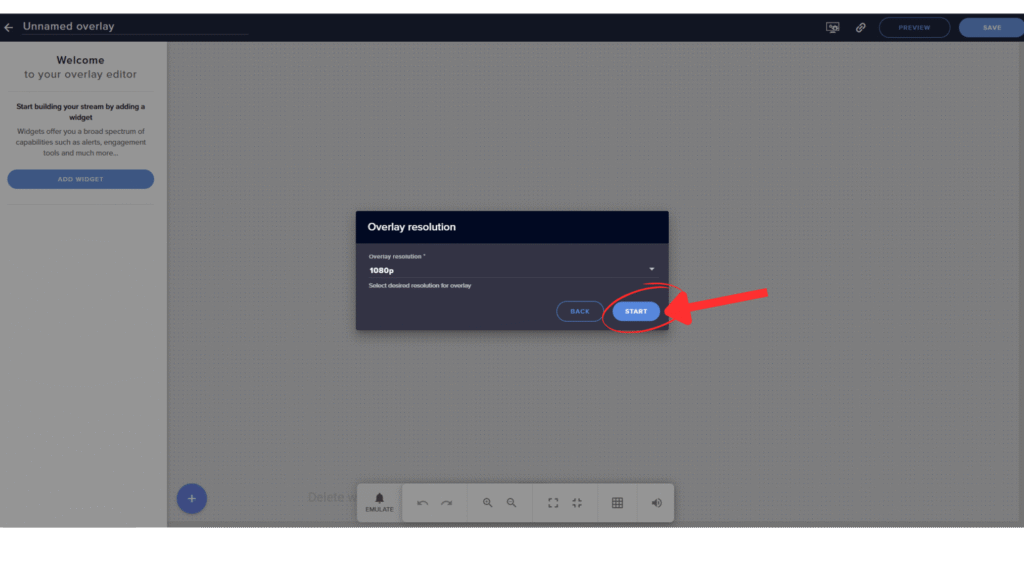
  1. Set the resolution (preferably 1080p), then click Start.

Step Four:

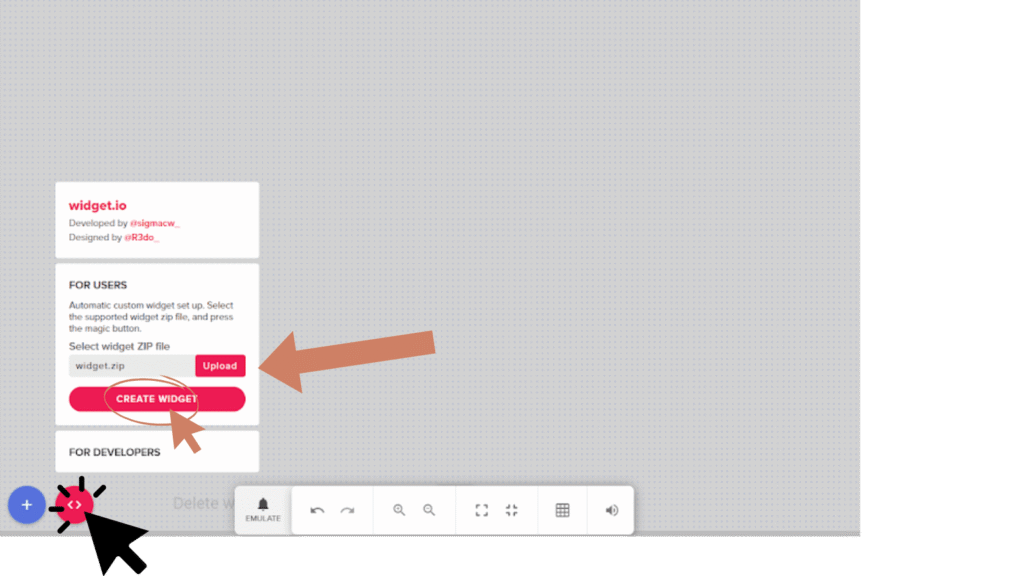
  1. Download all your widget files and upload them separatey. 

  2. After Upload click ‘Create Widget’.

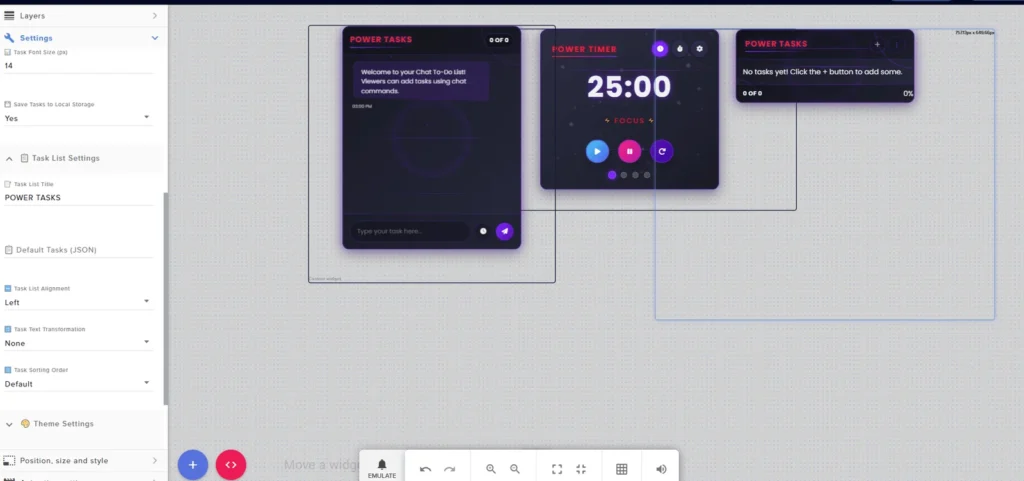
  3. If your widget is not displaying completely, expand the widget canvas by dragging it backward.

Step Five:

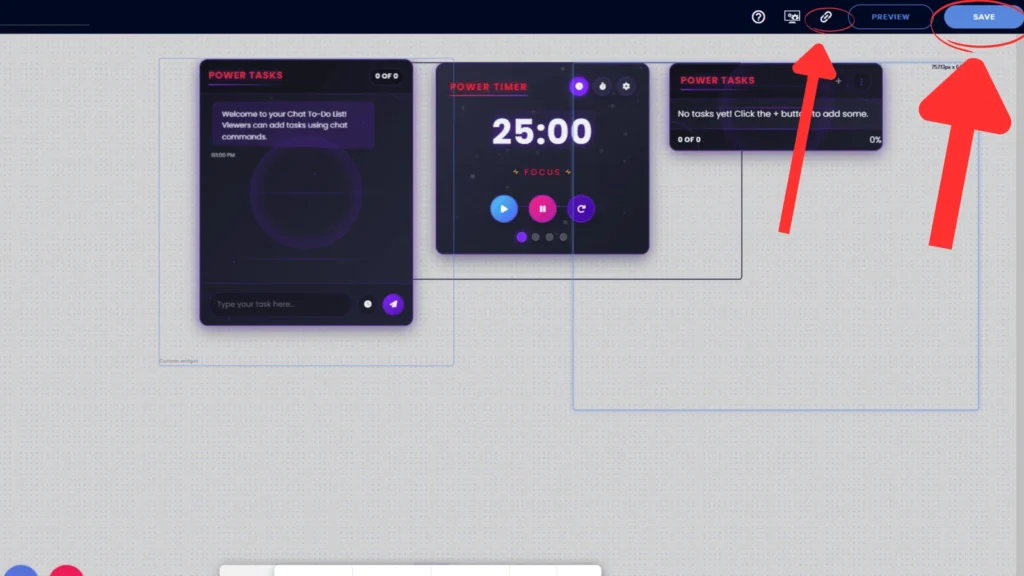
  1. After successfully loading, save it from the top right

  2. Give it any name you want.

  3. Then, copy the link.

  4. Open OBS and create a new scene or use an existing one.

Step Six:

  1. Your widget has loaded successfully and is ready to go!

Step Seven:

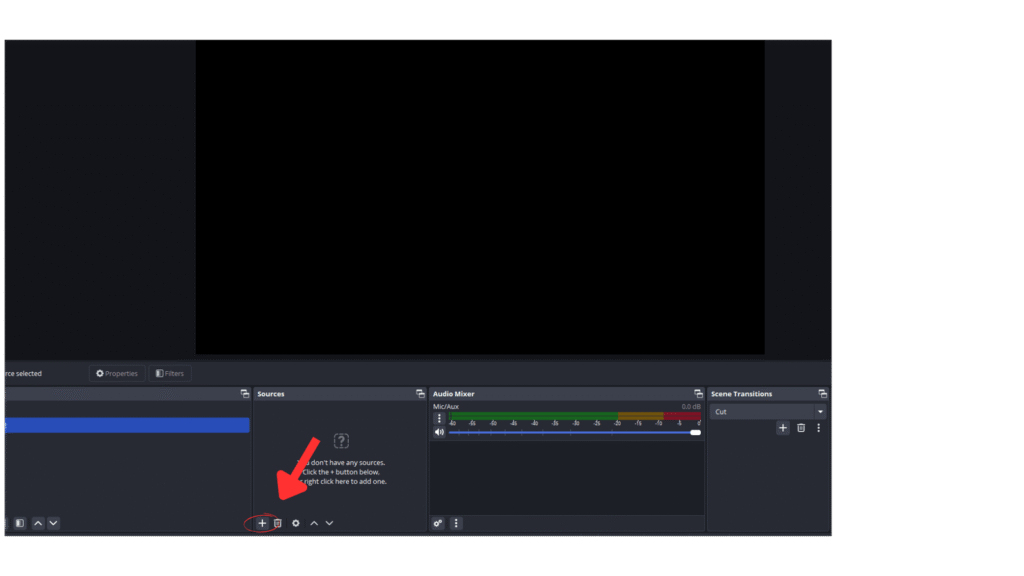
  1.  In OBS, go to the Sources section and click on the plus (+) icon.

Step Eight:

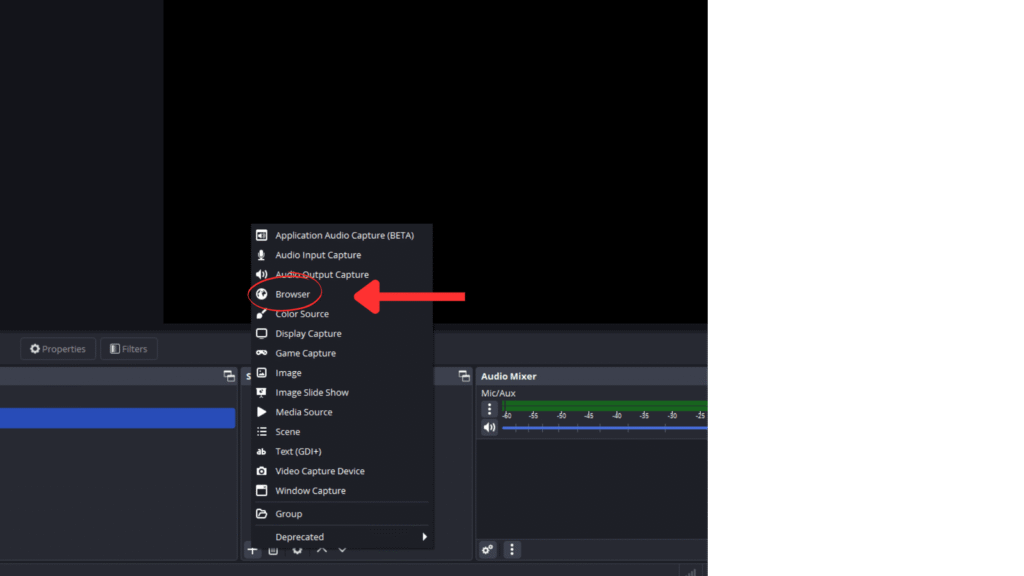
  1. After clicking the plus (+) icon, find ‘Browser’ and click on it.

  2. Give it any name you want.

Step NINE:

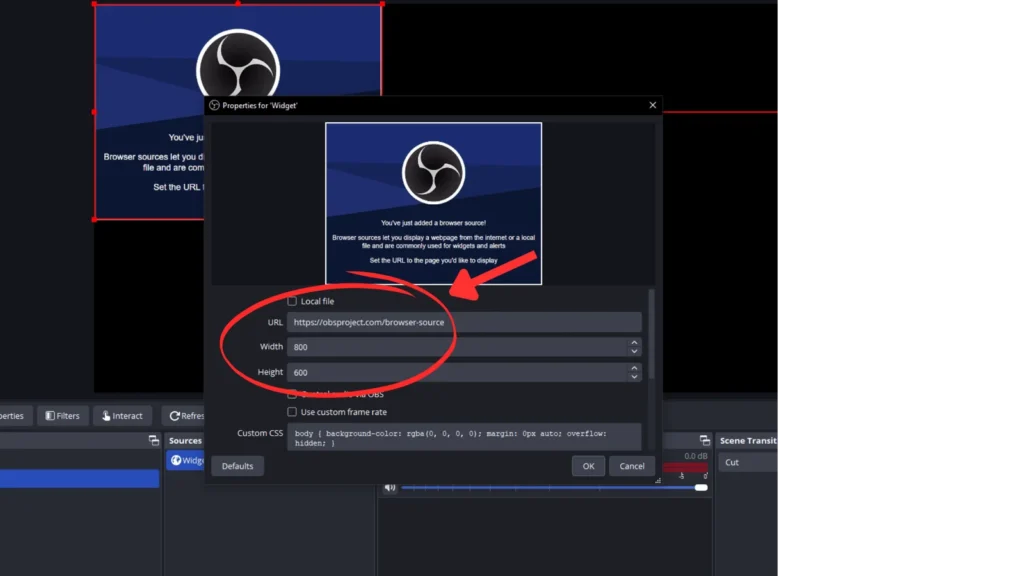
  1. After setting your name, update the values.

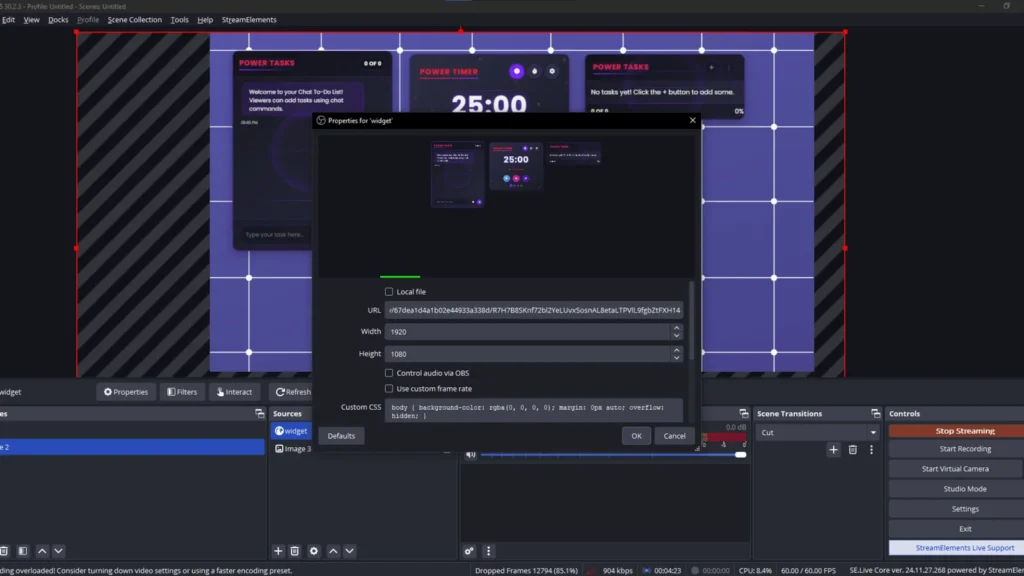
  2. Paste the link you copied from StreamElements.

  3. Change the width to 1920px.

  4. Change the height to 1080px

  5. .Click ‘OK’.

Step Ten:

  1. Now you’re ready to go live with your Twitch widgets. Start the  streaming!!!!

Step Eleven:

  1. <h4″>Load the widget in both StreamElements and OBS successfully.
  2. Open Twitch.

  3. Set up your stream as usual.

  4. Go to the Twitch Stream Manager.

  5. Download the command file from Drive,

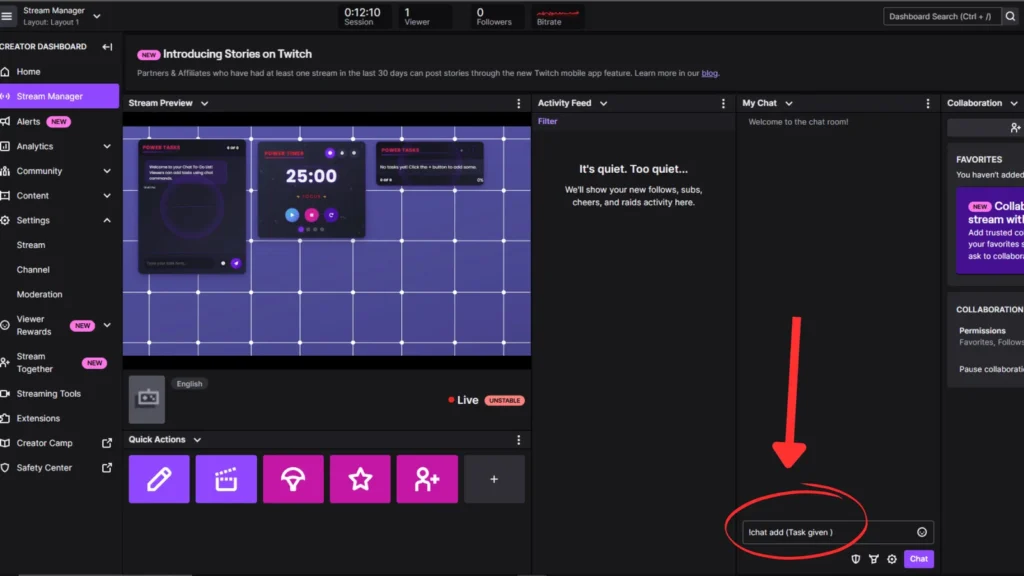
  6. Enter the commands into your Twitch chat or chatbot panel.

Step Twelve:

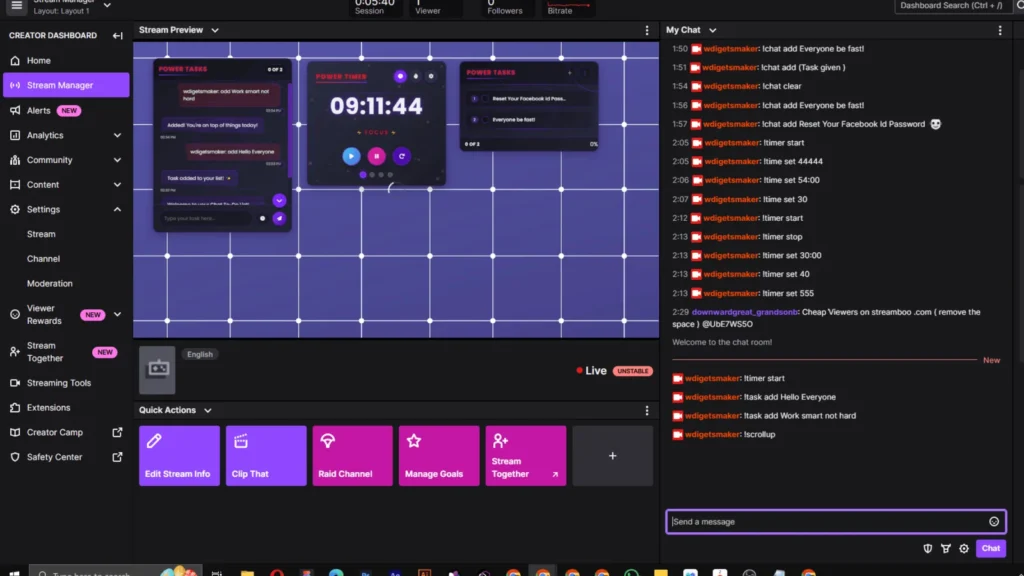
  1. Give the command in your Twitch chat.

  2. You’ll see the To-Do List appear in chat.

  3. The streamer timer will begin counting.

  4. The stream chat tasks will start functioning automatically.

You’re now good to go — everything is ready!
Happy streaming! 🎉

If you’re facing any issues, feel free to contact us on Discord.

Shopping Cart0

No products in the cart.